Translate and fix
Translate and fix without leaving your window
Stuck on a language? Select the passage, the bar opens beside it and the answer appears where you are writing. Nothing to copy, nothing to open.


Three situations, three gestures
An English email to fix
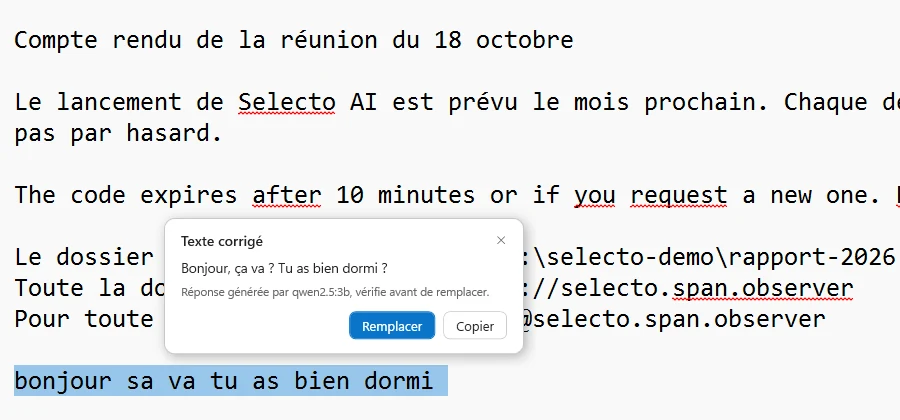
You write your reply in your mail app. Select the sentence and choose the AI correction: the fixed version appears beside it. One click on Replace, and it takes the original’s place.
A Spanish site to understand
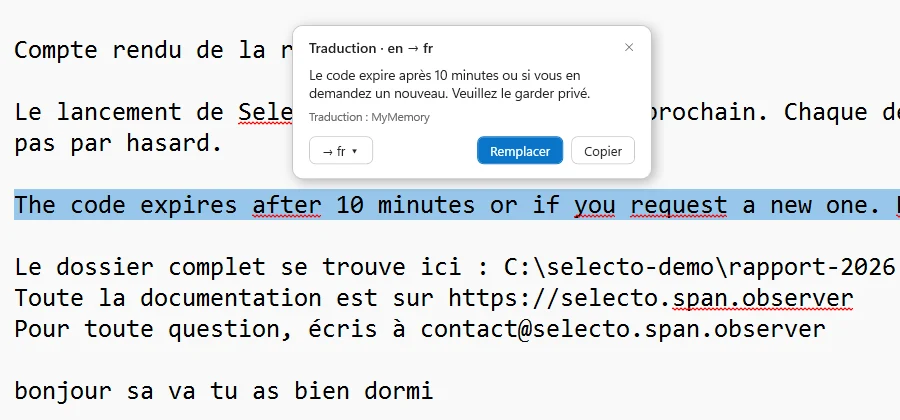
Select the paragraph and start the translation. The French text appears near the selection, with the detected language. The word that stops you, select on its own.
A message in a language you cannot read
Same gesture: you select the message, the translation appears beside it. Then you reply in your language, or theirs, using the same bar.
A word to define
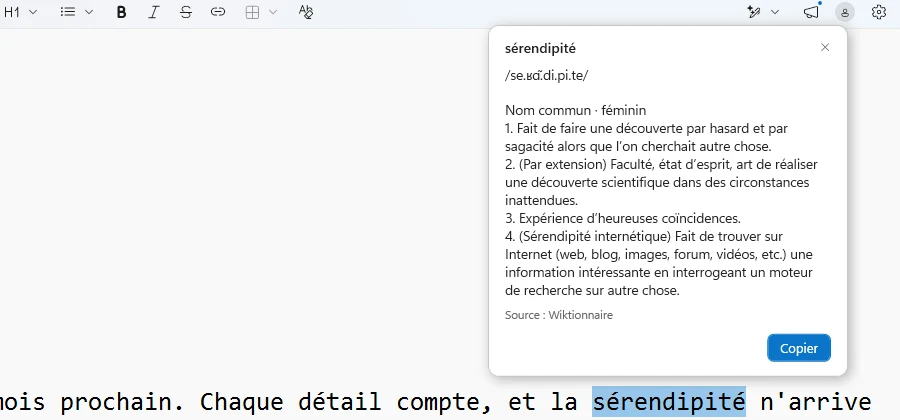
Select the word. The dictionary answers under the selection: no tab to open, no search to type.
“Replace” in one click
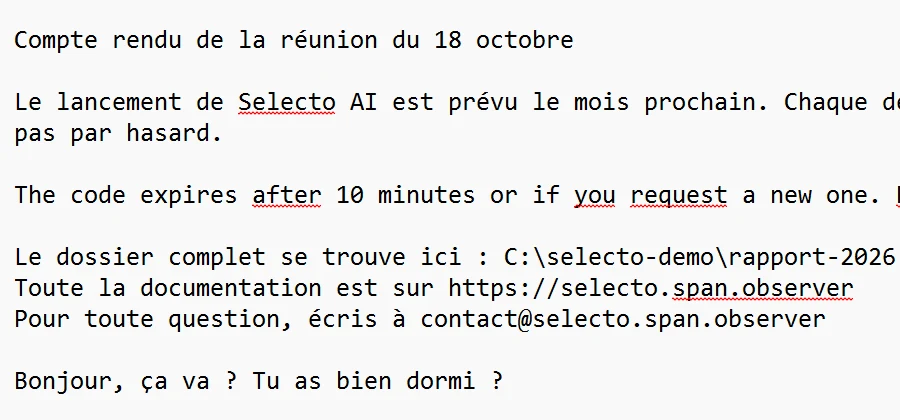
When the correction or translation suits you, Replace writes the result in place of your selection. No more copy-paste between two windows.
Your text stays on your PC
Local AI runs on your computer: the sentence you correct does not go onto the internet. The engine is 210 MB. Then you pick a model for your PC: Light (about 1.0 GB), Balanced (about 1.9 GB) or Powerful (about 3.4 GB).
Prefer an online AI? Plug in your own key. The text then goes to the service you chose, not to Selecto AI.
The same gesture everywhere
The gesture does not change from one app to another: you select, the bar appears, you choose. In a browser, a mail app or a word processor, you learn it once. If an app does not let other programs read its selection, copy the passage into a text field and run the action there.
For a long text, select one paragraph at a time: the answer stays readable beside it, and you keep control of each sentence before replacing it. Once the reflex is set, translating becomes a habit, not a manoeuvre.
Which AI to choose?
- Local: the text never leaves your PC, and the AI answers without internet once installed.
- Online, with your key: nothing to download on your PC, and you pay the service with your own key.
For a confidential email, choose local.
Both options use the same bar and the same Replace button.
Four languages in the interface
French, English, Spanish and Arabic (beta). Choose it in Settings › General › Language.
Frequently asked questions
Does my text go onto the internet?
With local AI, no: it stays on your PC. With online AI, it goes to the service you plugged in with your key.
Does it work in my word processor?
In any Windows app where you can select text. Some do not let other programs read their selection: the bar does not appear there.
Do I need an internet connection?
Not for local AI, once the engine and the model are installed. Yes for online AI.
Does Selecto AI detect the language?
Yes: the translation shows the detected language of the selected text.