Docs Reference
Selecto AI documentation.
Everything the app does, setting by setting. For a step-by-step tour with screenshots, read the guide.
Quick start
- Install Selecto AI from the Download page (Windows 10 or 11, x64 or ARM64).
- Select a word in any app: the bar appears above it.
- Dictionary, translation and AI use Online actions (Settings › AI), on by default: untick it if you want nothing sent online.
- For AI, pick a model: On my PC (free, private) or Online with your API key.
Step by step
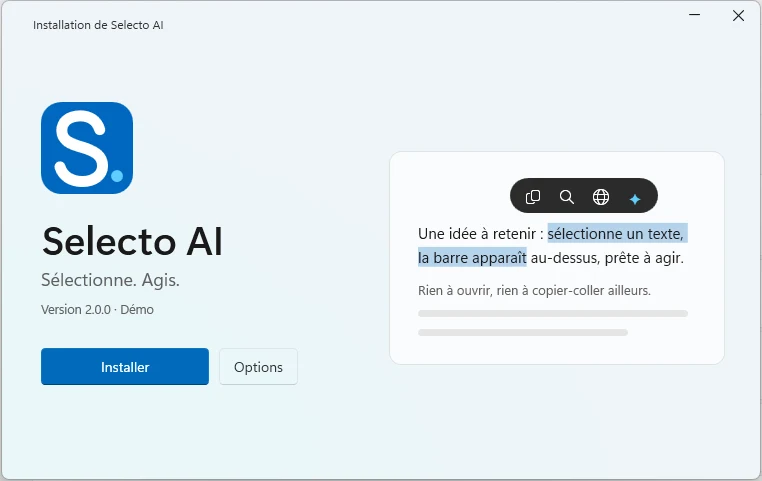
- Install: in your user profile, no administrator password.
- Options: folder and shortcuts.
- Meanwhile, a reminder of the essentials: select, the bar appears.
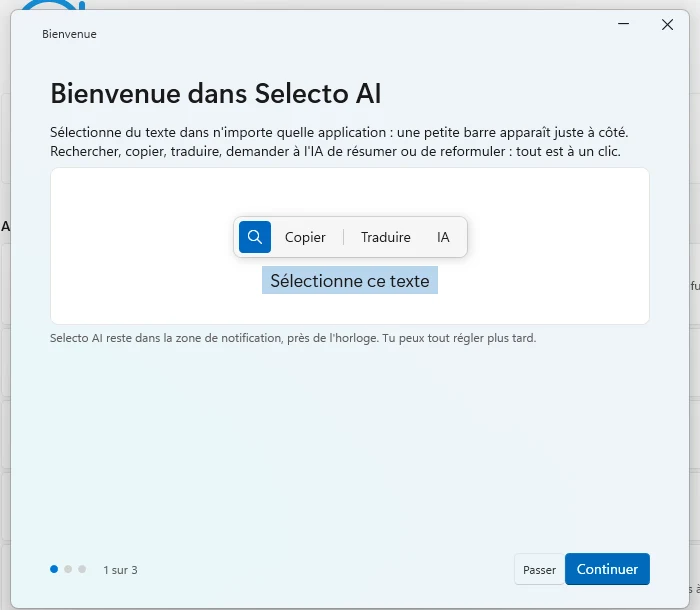
- On first launch, the assistant shows the bar on a sample text.
- Continue: the AI level, then you are set.
- Skip: everything can be set later in Settings.
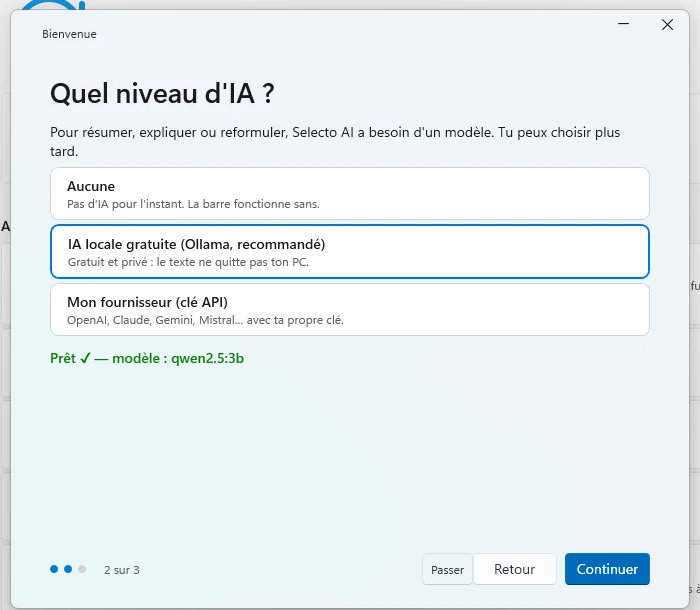
- Three choices: no AI, free local AI, or your provider with your key.
- When a model is ready, the assistant says so.
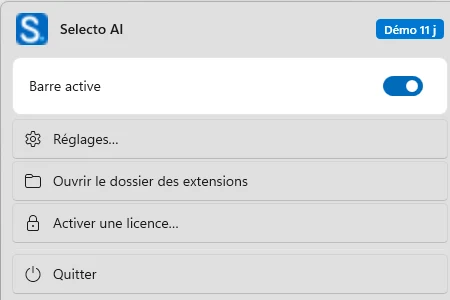
- Bar active: turns the bar off or on everywhere.
- Settings.
- Open the extensions folder.
- Quit.
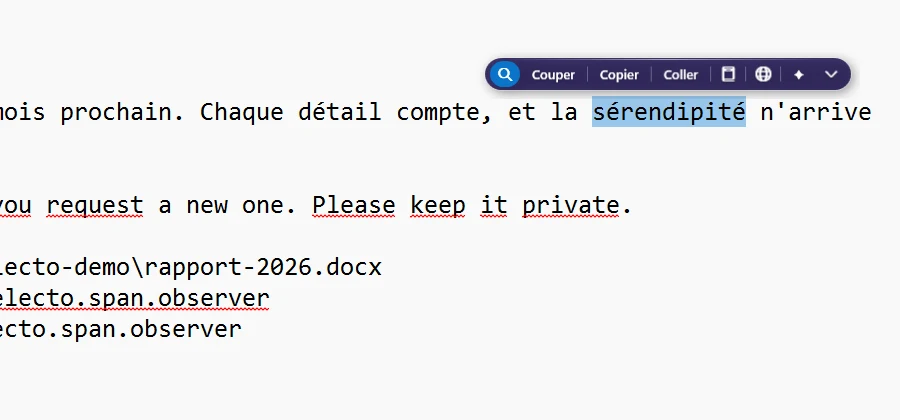
- Double-click a word or drag over a passage: it gets highlighted.
- The bar sits right above, without taking focus.
- Search opens the selection in your engine.
The bar
- Search, blue dot.
- Cut · Copy · Paste (Cut and Paste only in an editable field).
- Dictionary (book) and Translate (globe), when online actions are on.
- AI ▾: Summarise, Explain, Rephrase, Correct.
- The selection stays visible under the bar.
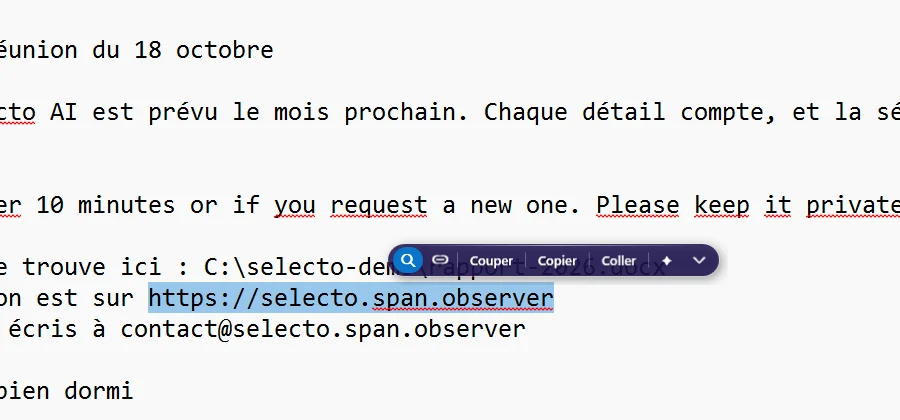
- Text detected as a link, Windows path or e-mail adds a button after Search.
| Topic | Behaviour |
|---|---|
| Appears | After a double-click, a triple-click or a drag longer than 40 pixels, with a 75 ms delay, in any app where text can be selected. Text is read through Windows accessibility (UI Automation), otherwise through a simulated Ctrl+C, the clipboard being restored afterwards. |
| Does not appear | In excluded apps (by default: cmd, PowerShell, pwsh, Windows Terminal, conhost, mintty, where Ctrl+C would interrupt the program), in windows running as administrator (Windows blocks key sending from a non-elevated program), on excluded sites, and in Selecto AI’s own windows. |
| Position | Centred above the selection; below when there is no room; never under the pointer. Adjustable: above or below (Settings › General). |
| Focus | The bar never takes focus: your app stays active. |
| Closing | Click elsewhere or Esc. |
| Size | From 80 to 140% (Settings › General). |
| Disable | Per app or per site (exclusions), or globally from the notification-area icon, or with the global keyboard shortcut chosen in Settings › General. |
| Limits | Up to 10 MB of text read, 50 KB processed; dictionary for 1 to 3 words (beyond that, translation); MyMemory translation in 500-character chunks, about 5,000 characters a day without an account; AI: at most 4,000 characters sent; search: 400 characters. |
| Look | Translucent indigo pill, white buttons, thin separators; the Search button has a blue dot. |
Action reference
Default order, left to right. “Online” means the selected text is sent to a third-party service.
| Action | Shows when | What it does | Online |
|---|---|---|---|
| Search | Always | Opens the selection in your search engine, in the default browser. Google by default; Bing, DuckDuckGo, Brave, Ecosia, Kagi, Startpage, Yahoo, or a custom address with *** in place of the text (gear next to Search, Actions tab). 400 characters at most. | yes |
| Open link | A web address is detected | Opens the link in the default browser. | no |
| Show in Explorer | A Windows path is detected | Opens Explorer at that path. | no |
| Write to… | An e-mail address is detected | Opens a new message to that address. | no |
| Spelling (Abc) | Editable field, misspelt word | Replaces the word with the suggestion. | no |
| Cut | Editable field | Clipboard. | no |
| Copy | Always | Clipboard. | no |
| Paste | Editable field and non-empty clipboard | Clipboard. | no |
| Dictionary | Online actions on, 1 to 3 words | Part of speech, pronunciation, 1 to 5 definitions (Wiktionary / dictionaryapi). | yes |
| Translate | Online actions on | Language detected, translation to the chosen language, target-language selector (MyMemory). | yes |
| AI ▾: Summarise, Explain, Rephrase, Correct | Online actions on and a model configured | Answer in the window; Rephrase and Correct replace in an editable field. | local: no · key: yes |
The answer window
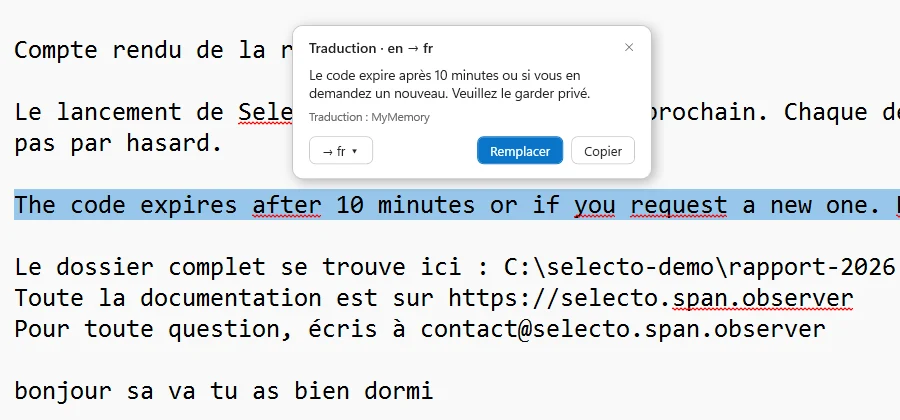
- Title: the action and the detected languages.
- The answer, then its source (here MyMemory).
- Change the target language.
- Replace writes the answer over the selection (editable field).
- Copy puts the answer on the clipboard.
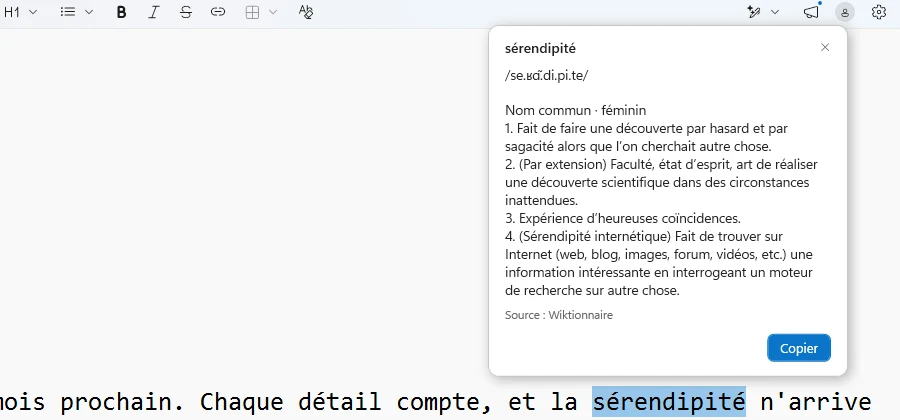
- The word, its pronunciation and part of speech.
- Up to five definitions.
- The source: Wiktionary or dictionaryapi.dev.
- Copy (no Replace: a definition does not replace the word).
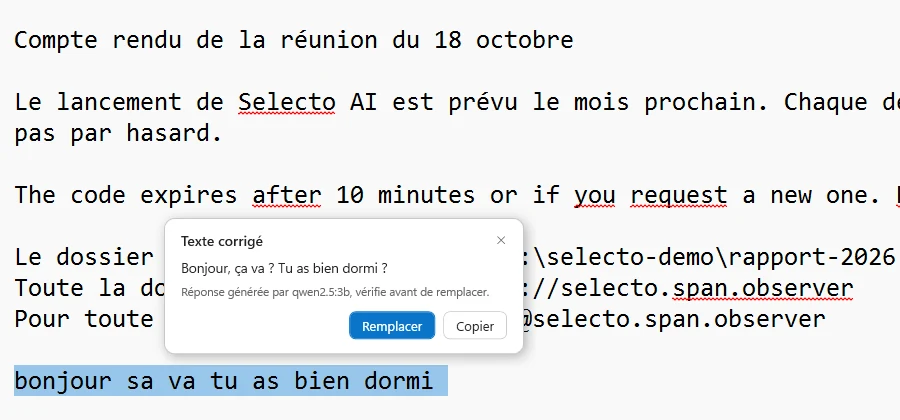
- The title says the action: Summary, Explanation, Rephrasing, Corrected text.
- “Generated by <model>, check before replacing.”
- Replace, then the corrected text takes the place of the mistake.
| Element | Detail |
|---|---|
| Shape | White card about 360 px wide, rounded corners, thin border, blue accent; never takes focus; Esc or a click elsewhere closes it. |
| Titles | “Dictionary”, “Translation · fr → en”, “Summary”, “Explanation”, “Rephrasing”, “Corrected text”. |
| Buttons | Replace (blue, only if the selection is editable) and Copy. |
| Loading | Indicator and “Searching…”. |
| AI note | “Generated by <model>, check before replacing.” |
| No model | “No model configured” with the buttons “Install AI on my PC” and “Use an online service”. |
| Network error | Message and an “Open in browser” button. |
Settings
Open the settings from the notification-area icon. Four tabs.
General
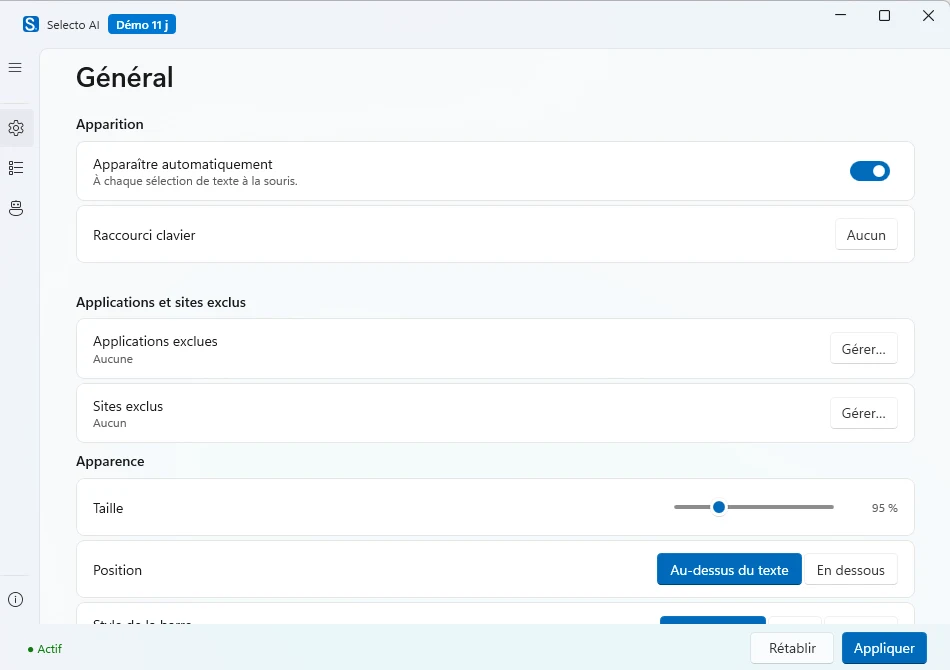
- The rail: General, Actions, AI, About.
- The badge shows the installed version.
- Automatic appearance on each selection.
- Global keyboard shortcut (turns Selecto on or off).
- Excluded apps and sites: Manage…
- Bar size, 80 to 140%.
- Position: above or below the text.
- Apply saves; Reset returns to the defaults.
- Automatic appearance of the bar on selection.
- Global keyboard shortcut, chosen by you (the combination is captured in the field). It does not open the bar: it turns Selecto AI on or off, like the “Enable” item in the icon’s menu. Ctrl, Alt, Shift or Win plus a key A–Z, 0–9 or F1–F12. Windows may refuse a shortcut already taken (message in the log).
- Excluded apps and excluded sites.
- Bar size, from 80 to 140%.
- Position: above or below the selection.
- Start with Windows.
Actions
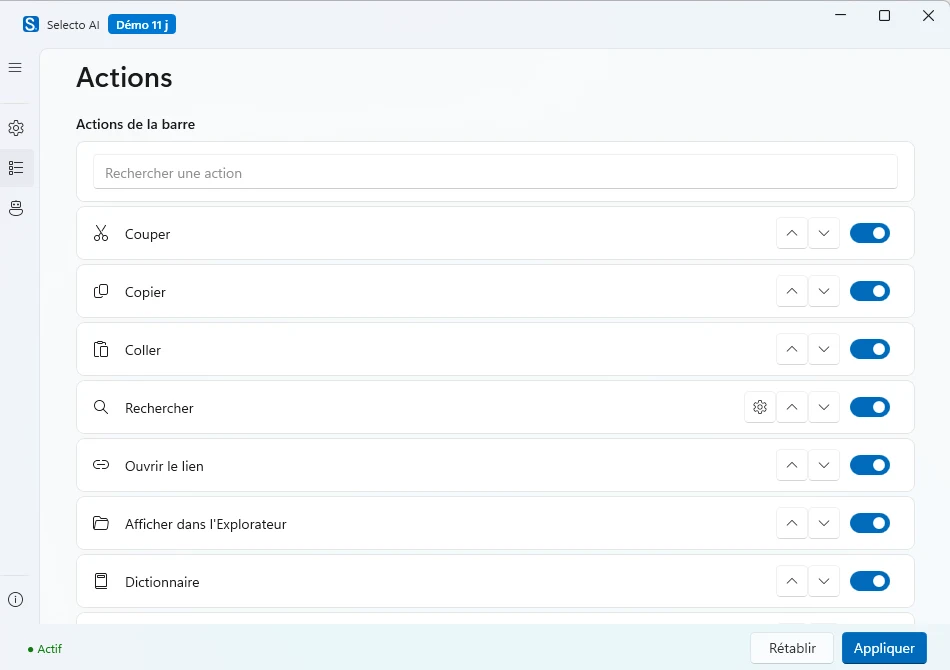
- Search for an action in the list.
- Enable or disable each action.
- Reorder with the arrows.
- Search’s gear: the search engine.
- Action list: enable, disable, reorder.
- Search engine (gear next to Search): Google, Bing, DuckDuckGo, Brave, Ecosia, Kagi, Startpage, Yahoo or a custom address with ***.
- JavaScript extensions: enable, disable, reorder, open the folder.
AI
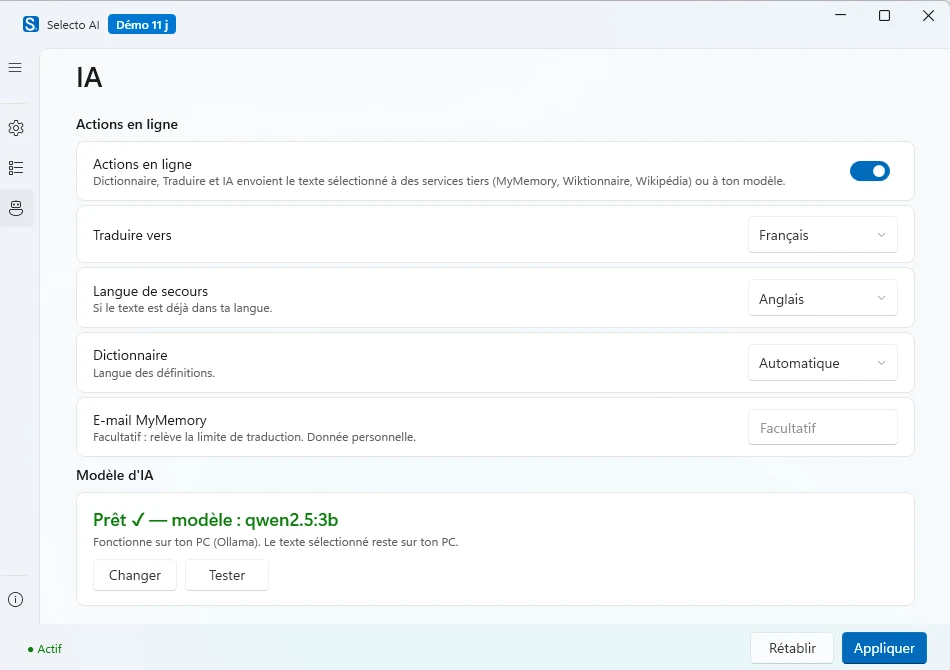
- Online actions: Dictionary, Translate and AI (on by default, can be turned off).
- Translation, fallback and dictionary languages; optional MyMemory e-mail.
- The AI model in place (here qwen2.5:3b, on the PC).
- Change the model or test it.
- Online actions (on by default, can be turned off here and from the welcome screen): Dictionary, Translate and AI send the selected text to third-party services (MyMemory, Wiktionary, Wikipedia) or to your model.
- Translate to: French, English, Spanish, German, Italian, Portuguese, Dutch or Arabic; the source language is detected. Fallback language (English by default) when the text is already in the target language. Dictionary: Automatic, French (Wiktionary) or English (dictionaryapi.dev).
- MyMemory e-mail, optional: raises the translation limit (personal data).
- AI model: On my PC, Online service, or Later.
About
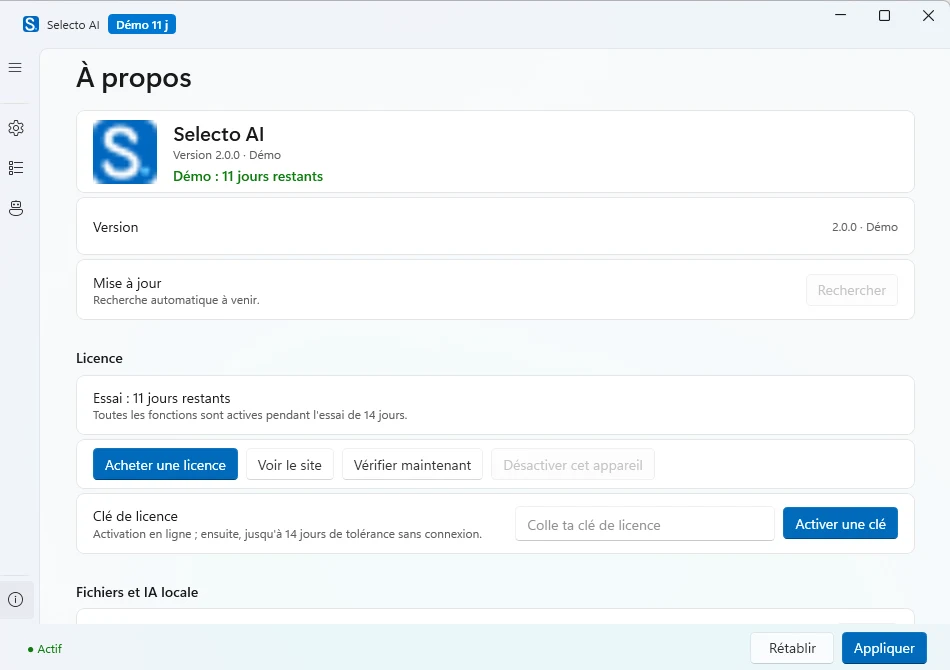
- Edition: free.
- Installed version.
- Version: shown here. Update: “Check for updates” button (Site edition).
- Licence: MIT, text and source code on GitHub. No key, no account.
- Extensions folder (.js files), Open button.
- Uninstall local AI: removes the engine installed by Selecto AI and its models.
AI on my PC
Settings › AI › On my PC. Three steps, no terminal, no administrator rights.
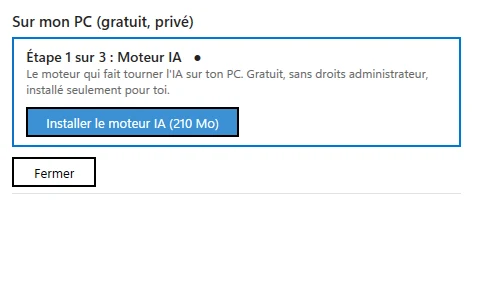
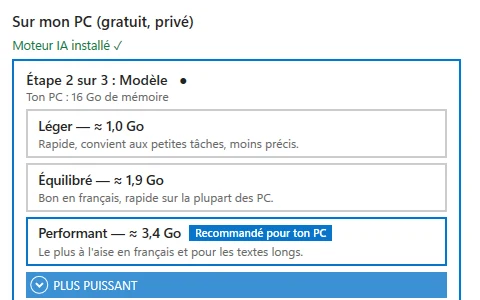
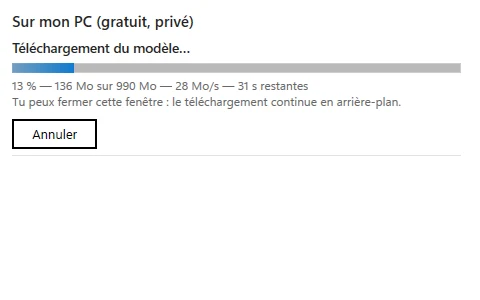
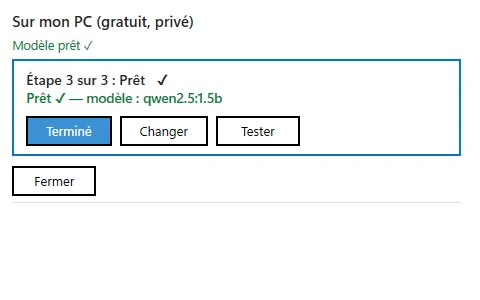
- AI engine, 210 MB
- Pick a model
- Download
- Ready ✓
| Step | Detail |
|---|---|
| 1. AI engine | “Install the AI engine (210 MB)”: an official portable build of Ollama, installed in the app folder (%LOCALAPPDATA%\SelectoAI\ollama), local address http://127.0.0.1:11434, never reachable from the network. An Ollama you installed yourself is left alone. |
| 2. Model | Recommended for your PC’s memory: Light qwen2.5:1.5b (≈ 1.0 GB, fast), Balanced qwen2.5:3b (≈ 1.9 GB, good in French), Powerful gemma3:4b (≈ 3.4 GB, best in French and for long texts). A “More powerful” choice is folded away. |
| 3. Ready | Download with progress (you can close the window, it continues in the background), then “Ready ✓ — model: …” with Change and Test buttons. |
| Remove | Settings › About › Uninstall local AI › Uninstall…: removes the engine installed by Selecto AI and all its models, after confirmation, showing the space freed. To only change model: AI tab › Change. |
| Folders | Engine and models in %LOCALAPPDATA%\SelectoAI\ollama (app, models, download subfolders). |
Online AI
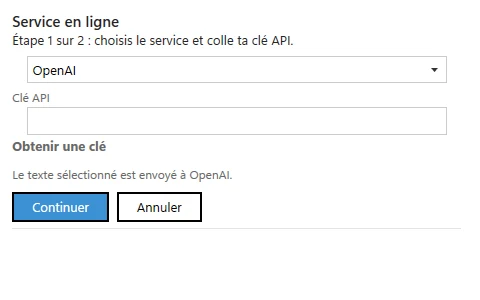
- Pick the provider in the list.
- Paste your API key (“Get a key” opens the provider’s site).
- Continue: the model is ready.
Settings › AI › Online service: pick the provider, paste your API key (“Get a key” button to the provider’s site), Continue. Providers: OpenAI, Anthropic, Gemini, Mistral, Groq, DeepSeek, xAI, Together, OpenRouter. You pay the provider directly; the selected text is sent to them for each AI action.
Privacy
| Data | Goes to | When |
|---|---|---|
| Selected text | MyMemory | Translate |
| Selected text | Wiktionary / dictionaryapi | Dictionary |
| Selected text | Your search engine | Search |
| Selected text | Your AI provider | AI actions with an API key |
| Selected text | Nowhere: processed on your PC | AI actions with the local model |
| Usage, habits, apps | Nowhere: no telemetry | — |
Details in the privacy policy.
Free and licence
- Free: no price, no subscription, no account, no key.
- Licence: MIT. You may use, study, modify and redistribute the software, including commercially, keeping the copyright notice.
- Source code: github.com/warezfr/selecto-ai.
Troubleshooting
| Problem | Check |
|---|---|
| The bar does not appear | Selecto is running (notification-area icon); the app or site is not excluded; automatic appearance is on (Settings › General). |
| No Dictionary, Translate or AI button | Check that “Online actions” is ticked in Settings › AI (on by default). Dictionary only shows for 1 to 3 words. |
| “No model configured” | Settings › AI: install AI on your PC or paste an API key. |
| Windows blocks the installer | SmartScreen, while the installer is unsigned: see the Download page (steps and checksum). |
| Network error in the window | The online service is not answering: “Open in browser” button, or try again later. |
| No bar in a terminal or an administrator window | Expected: terminals are excluded by default (Ctrl+C would interrupt the program) and Windows blocks key sending to an elevated window. |
| The shortcut does nothing | Check that a combination is saved in Settings › General. If another program already uses it, Windows refuses it (see selecto.log). Reminder: it turns Selecto AI on or off, it does not open the bar. |
| Log | %APPDATA%\SelectoAI\selecto.log: ignored extensions, refused shortcut, network errors. |
| Anything else | Write to us with the Selecto version (Settings › About), your Windows version and, if possible, a screenshot. |
Extensions
An extension is a .js file dropped into the extensions folder (%APPDATA%\SelectoAI\Extensions, Open button in Actions and About, “+ Add” in Actions, or the icon’s menu). One file = one action, added after the built-in buttons. Extensions are reloaded at launch and when the settings open; they are enabled, disabled and reordered in Settings › Actions. Two examples, uppercase.js and word-count.js, are copied into the folder while it is empty.
File structure
// ==SelectoExtension==
// @name MAJUSCULES
// @identifier com.exemple.upper
// @icon AA
// @regex /[a-z]/
// @requirements text, paste
// @apps chrome.exe, code.exe
// ==/SelectoExtension==
selecto.pasteText(selecto.text.toUpperCase());| Field | Role |
|---|---|
| @name | Required. Action name (Actions tab, button tooltip). |
| @identifier | Required, unique. |
| @icon | Optional. Short text shown on the button (otherwise the name). |
| @regex | Optional. Expression tested against the first 50 KB of the selected text (the /…/ are stripped); the button only shows when it matches. 200 ms timeout. |
| @requirements | Comma-separated list: text; paste (editable field only); nopaste (read-only only); url (selection contains a link); path (a Windows path). |
| @apps | Allow-list of executables (.exe optional, case-insensitive). |
The older ==SelectBarExtension== header is still accepted. An unknown requirement, an invalid expression or an incomplete header makes the extension ignored; the reason is written to selecto.log.
The selecto object
| Member | Effect |
|---|---|
| selecto.text | The selected text (truncated to 50 KB). |
| selecto.copyText(s) | Puts s on the clipboard. |
| selecto.pasteText(s) | Pastes s over the selection (simulated Ctrl+V, clipboard restored). |
| selecto.openUrl(u) | Opens u in the default browser (http, https, mailto) or in Explorer (file); only during the button click. |
| selecto.showText(s) | Shows a small text bubble near the pointer, about 8 s. |
Jint engine (ES5 and basic ES6 JavaScript), 5 s maximum per run, call stack limited to 200, no network or file access. The script returns nothing: everything goes through these methods.
Requirements
- Windows 10 or Windows 11, x64 or ARM64 (.NET 8 program). French interface.
- Local AI: about 210 MB for the engine, then 1.0 to 3.4 GB per model; the recommended model depends on the PC’s memory.
- Online actions: an Internet connection.
Where the files are
| Folder | Contents |
|---|---|
| %APPDATA%\SelectoAI | settings.json, excluded-apps.json, excluded-sites.json, selecto.log (log) and the Extensions folder. |
| %LOCALAPPDATA%\SelectoAI | ollama (engine and local AI models). |
On first launch, settings from the former name “SelectBar” are copied automatically. To quit: notification-area icon › Quit.