Guide Selecto AI for Windows
Select text, act on it.
Selecto AI is a small Windows app. The moment you select text, in any application, a bar appears above it with the useful actions: search, copy, define, translate, fix with AI. This guide shows everything, with real screenshots.
Welcome
An unknown word, a sentence in another language, a typo to fix: usually that means opening a tab for each. Selecto AI removes that detour. You stay in your document, the answer shows up next to the text, and a Replace button writes it for you when the field is editable.
- Windows 10 and 11, x64 and ARM64
- Free: no account, no key. MIT licence, public source code.
- AI on your PC (free, private) or with your own key
- No usage telemetry
Installation
- Download the installer from the Download page. Windows 10 or 11, x64 or ARM64.
- Run it. While the installer is unsigned, SmartScreen may show a warning: the Download page explains what to do and gives the file checksum.
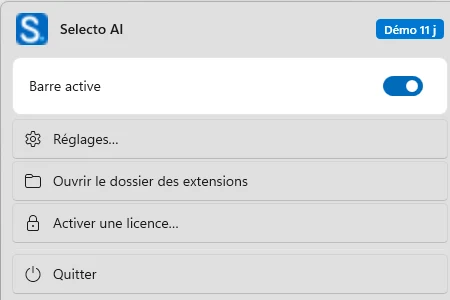
- Selecto sits in the notification area. Its icon lets you enable or disable the bar, open the settings, open the extensions folder and quit.
- That’s it. Select a word in any app: the bar appears.
The basics
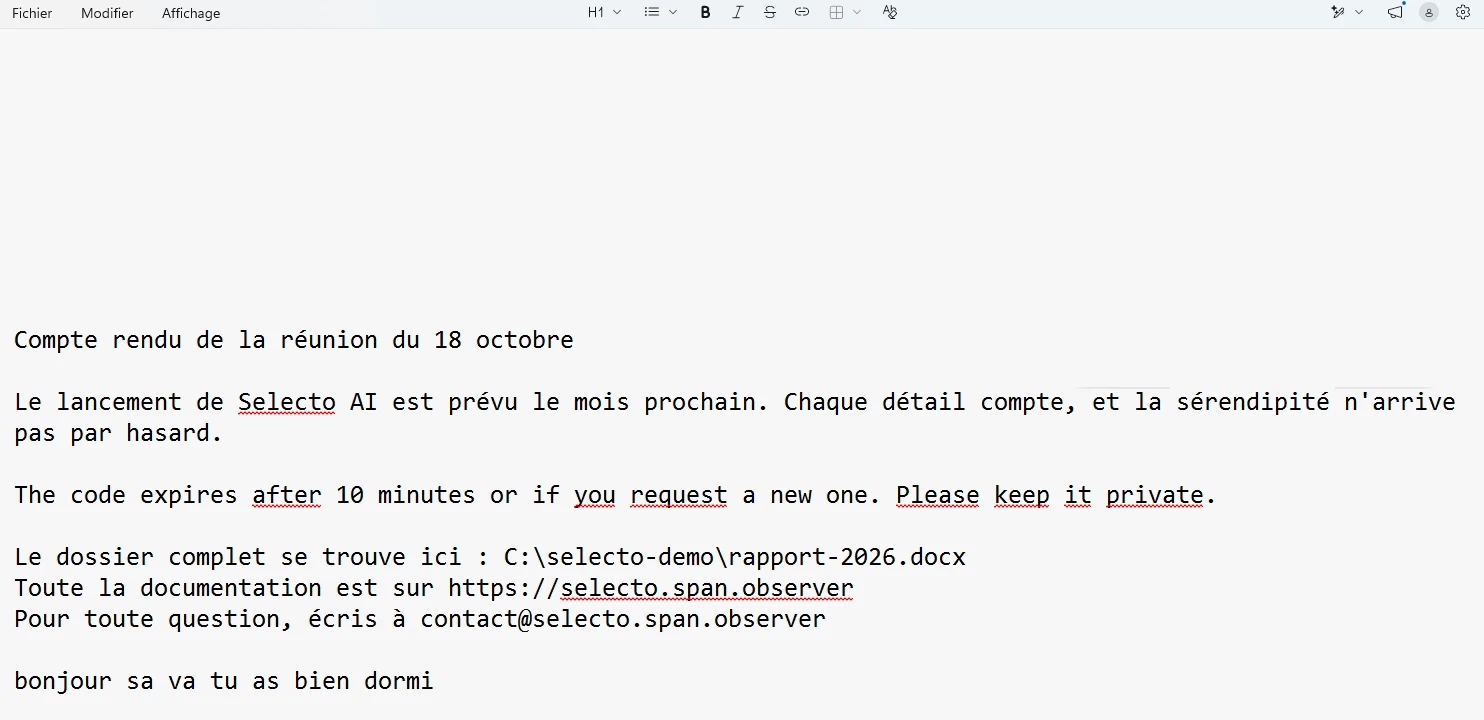
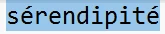
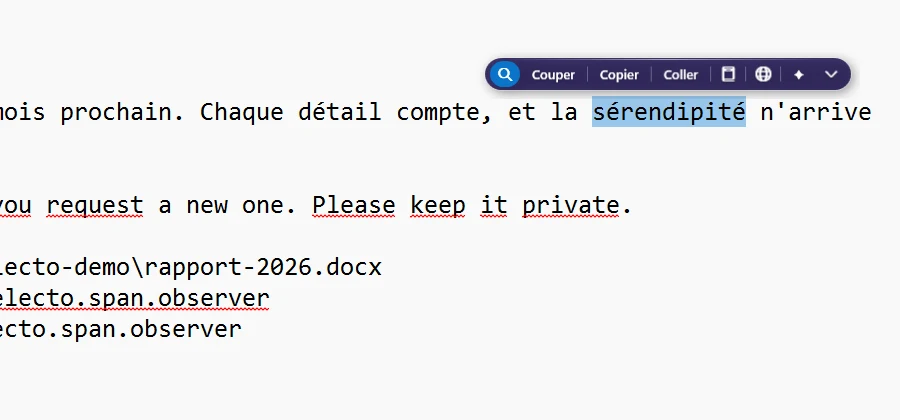
The bar appears after a double-click (a word), a triple-click (a paragraph) or a mouse drag. It sits above the selection, or below when there is no room, never under the pointer. It never takes focus: your app stays active. A click elsewhere or Esc closes it.




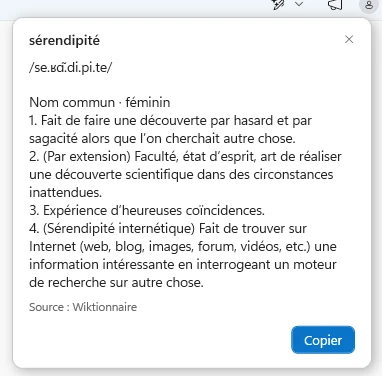
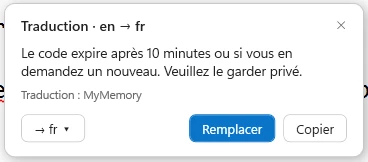
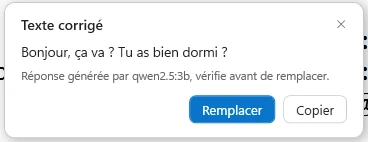
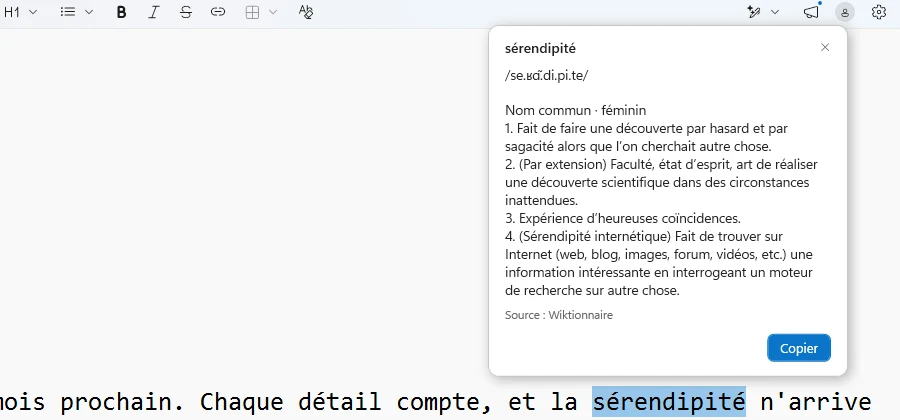
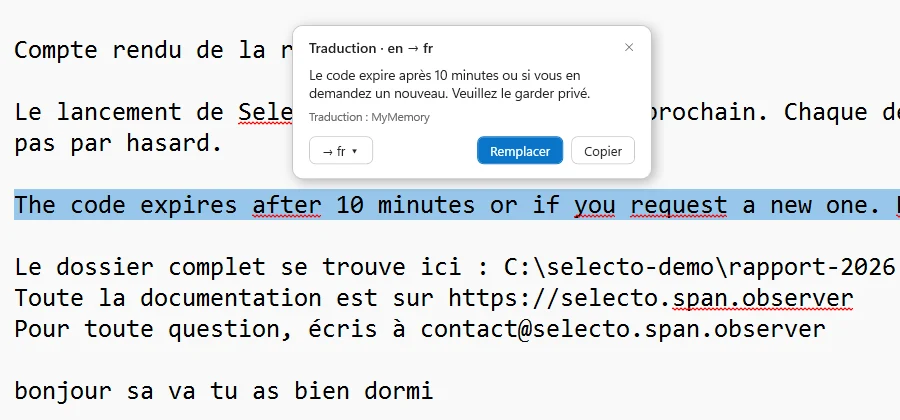
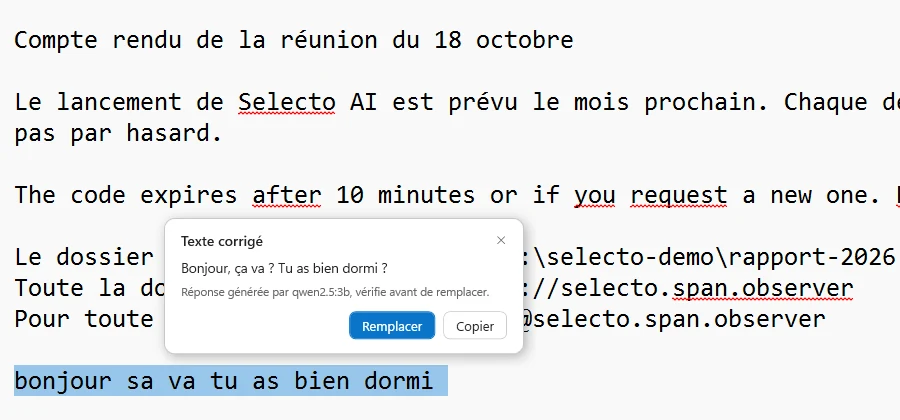
Answers (dictionary, translation, AI) show in a small white window next to the text. It has two buttons: Copy, always, and Replace, when the selection is in an editable field. Esc or a click elsewhere closes it.
The actions
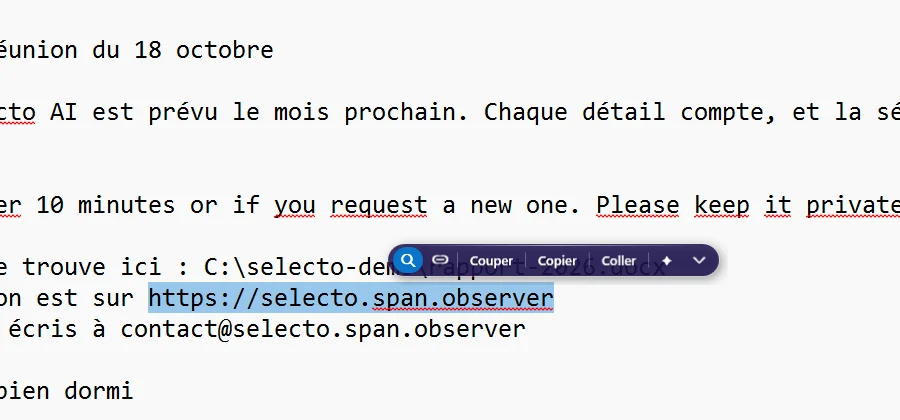
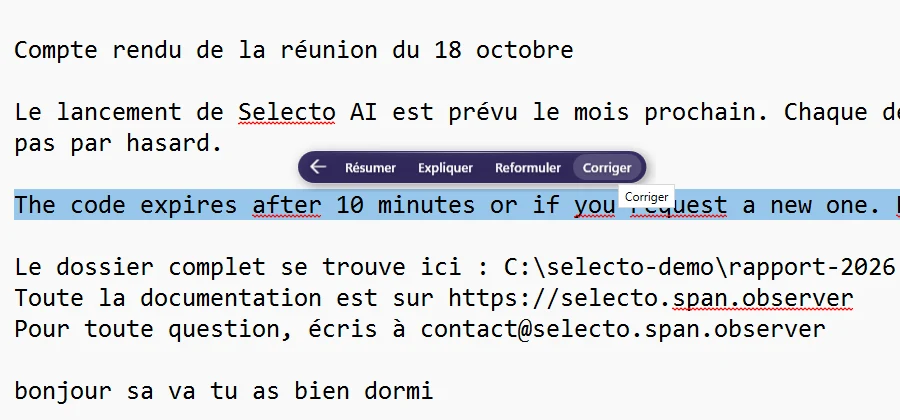
Left to right, in the default order. The bar adapts to the text: a link, a Windows path or an e-mail address brings up one more button.
The AI
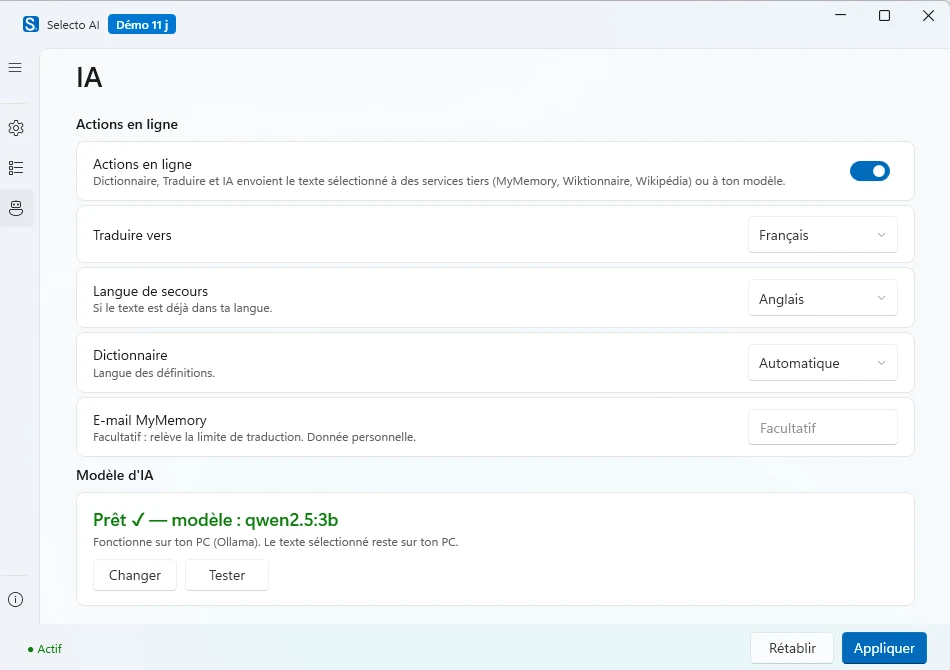
The four AI actions need a model. Two choices, in Settings › AI.
On my PC: free and private
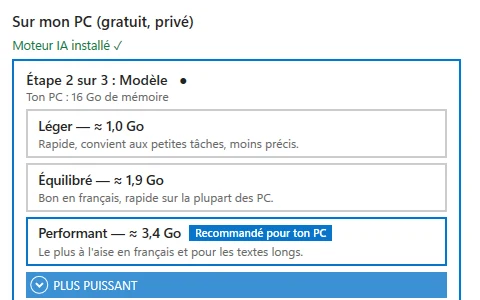
The app installs the Ollama engine for you, in one click, with no administrator rights, then suggests a model based on your PC’s memory: Light (qwen2.5:1.5b, ≈ 1.0 GB), Balanced (qwen2.5:3b, ≈ 1.9 GB) or Powerful (gemma3:4b, ≈ 3.4 GB). Your text never leaves your computer. Speed depends on your machine.
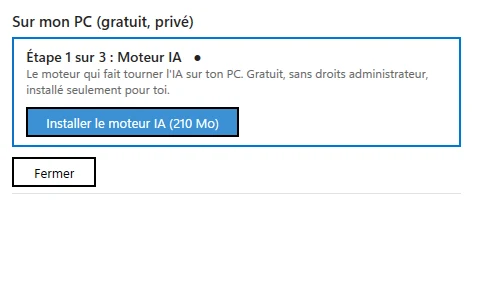
- AI engine, 210 MB
- Pick a model
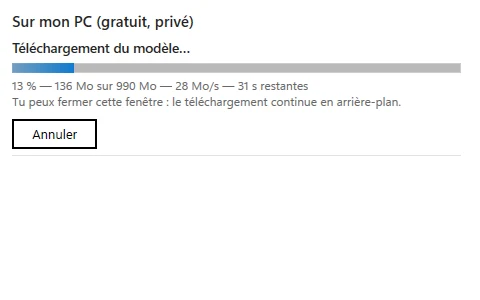
- Download
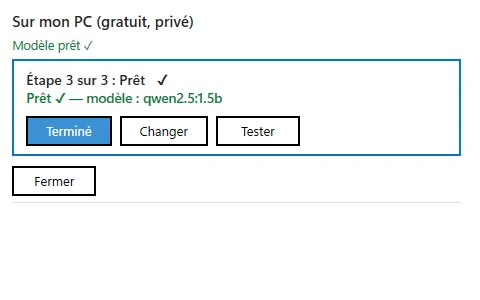
- Ready ✓
Online: with your own key
Paste your provider’s API key: OpenAI, Anthropic, Gemini, Mistral, Groq, DeepSeek, xAI, Together or OpenRouter. You pay them directly; the selected text is sent to them for processing.
With no model configured, the AI window says so and offers the two buttons “Install AI on my PC” and “Use an online service”.
Settings
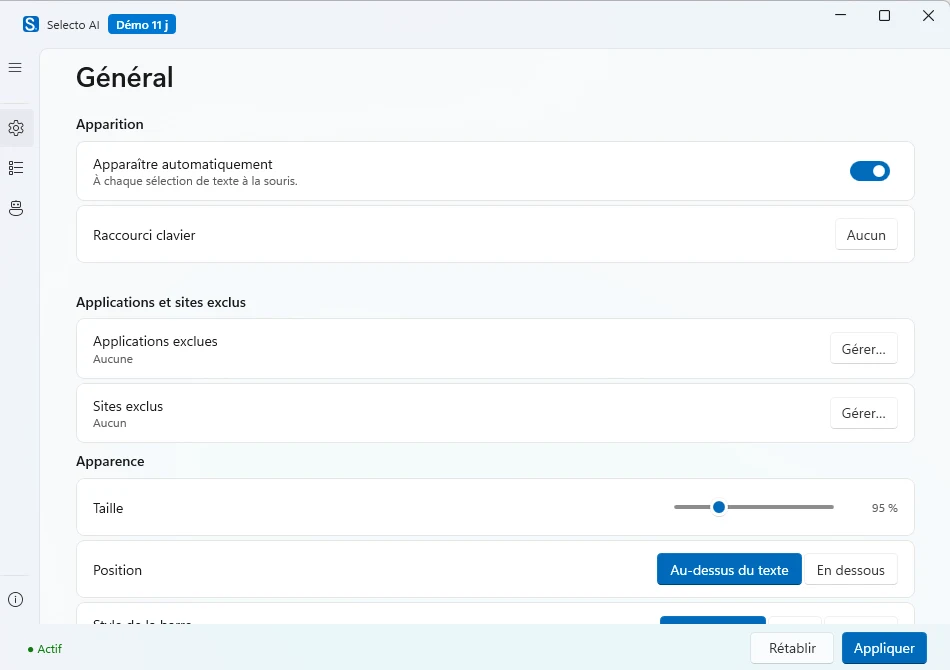
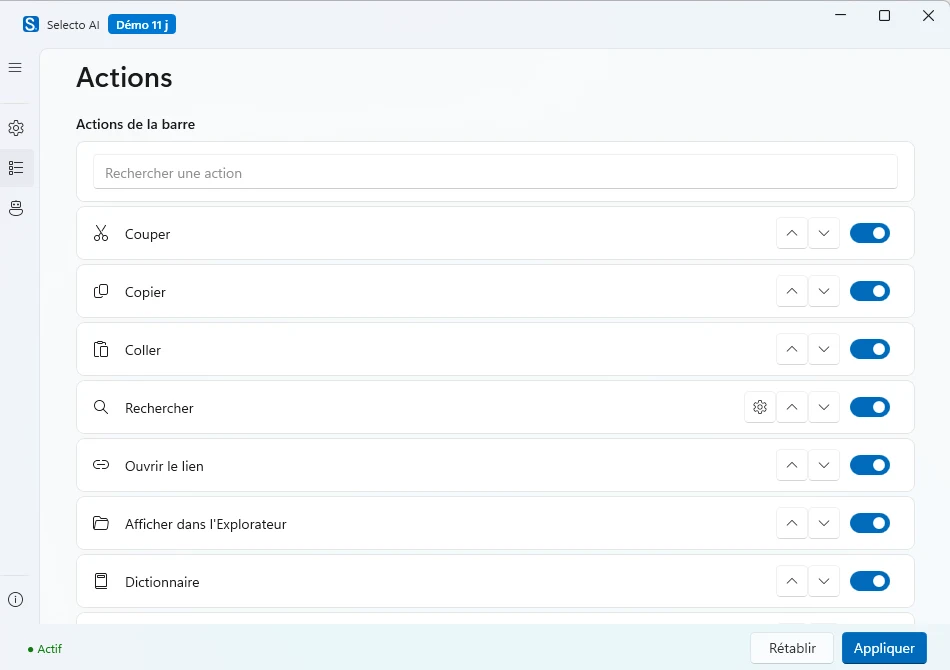
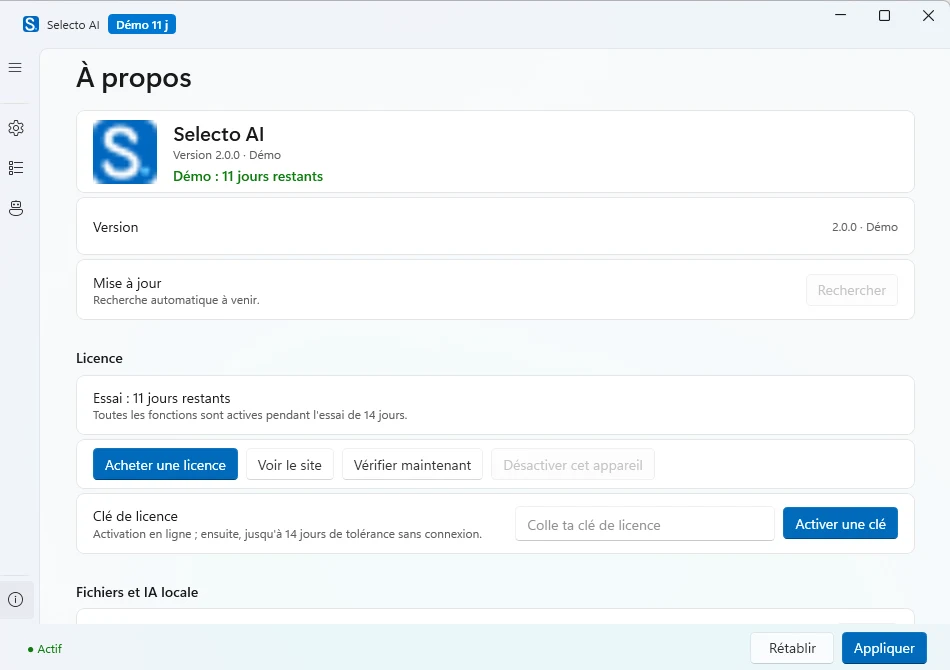
One window with four tabs, no scrollbar.
Extensions and exclusions
Extensions are .js files placed in the extensions folder, which you open from Settings › Actions, Settings › About or the icon’s menu. Each file adds a button after the built-in ones. A comment header describes the action (name, icon, condition), then a few lines of JavaScript read selecto.text and copy, paste, open a link or show a bubble. Two examples ship in the folder; the full format is in the documentation.
Exclusions (Settings › General) keep the bar from appearing in the apps and on the sites you choose, for instance a password manager or a game.
Free and licence
Selecto AI is free: no account, no key. The code is published under the MIT licence on GitHub; you may use, modify and redistribute it.