Developers
35 text actions, and your own in JavaScript
Do you transform text twenty times a day? Select, click, done. And when the action does not exist, you write it in a few lines.


The library
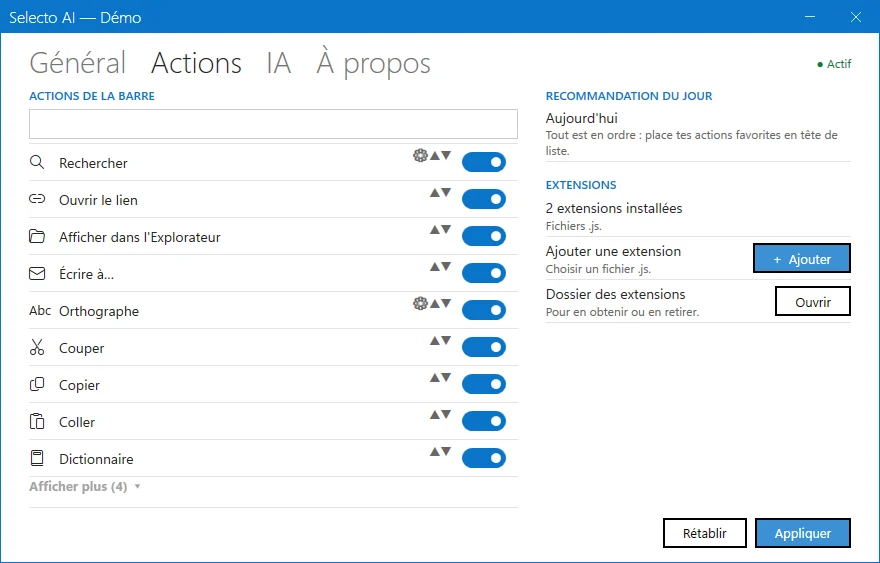
22 free extensions, 35 actions, sorted by family. Each one is added as a .js or .zip file, from Settings › Actions.
| Family | Examples |
|---|---|
| Formatting | Frame, Code name, Slug, Zigzag |
| Lines | Split, Shuffle, Number, Reverse, Gather, Remove duplicates |
| Privacy | Blur, Redact |
| Writing and code | Cite, Codec, Unfold, JSON net, Monospace, Bullets |
| Look it up elsewhere | Encyclopedia, Itinerary, Video |
| Reading | Reading chrono |
The selecto object
An extension is a JavaScript file. Selecto AI gives it the selecto object. Here is the Slug extension, as it is in the library (the code only, without its header):
var r = selecto.text.normalize("NFD").replace(/[̀-ͯ]/g, "")
  .toLowerCase()
  .replace(/[^a-z0-9]+/g, "-")
  .replace(/^-+|-+$/g, "");
if (selecto.editable) selecto.pasteText(r); else selecto.copyText(r);
var done = selecto.editable
  ? { fr: "Remplacé", en: "Replaced", es: "Reemplazado", ar: "تم الاستبدال" }
  : { fr: "Copié", en: "Copied", es: "Copiado", ar: "تم النسخ" };
selecto.showText(done[selecto.locale] || done.en);- selecto.text: the selected text, a string you call the usual JavaScript methods on.
- selecto.editable: true if the selection can be replaced, false otherwise.
- selecto.copyText and selecto.pasteText: copy the result, or paste it in place of the selection.
- selecto.showText: show a short confirmation message.
- selecto.locale: the interface language, to answer in the right one.
Install your extension
- Save your .js file. An extension with several files ships as a .zip, with the .js at the root.
- In Selecto AI: Settings › Actions › Add an extension. You can pick several at once.
- The action appears in the bar, for the selected text.
What they are for
Three uses come back: cleaning a list (Remove duplicates, Number, Shuffle), preparing an identifier (Slug, Code name), reading or writing code and URLs (JSON net, Codec, Monospace). You run the action on the selection, and the result goes back in place.
Actions work on the selected text, not on the whole document: a list of a hundred lines is handled in one go if you select all of it.
The extension header
The block between // ==SelectoExtension== and // ==/SelectoExtension== describes the extension. In slug.js, @identifier gives a unique identifier, @name and @name:fr the displayed names, @icon the icon in the bar, @requirements text what it expects (here, selected text), and @enabled-by-default whether it is active as soon as it is installed.
Keep the same structure for your own extensions: an identifier that is yours alone, two names, a short icon.
A short icon reads better in a narrow bar, and a short name fits the menu.
Sharing your extension
A .js file, or a .zip if there are several, is shared as it is. Your colleague adds it in Settings › Actions, like any extension in the catalogue.
The main file carries the name of the extension, like slug.js: that is the library’s rule.
Frequently asked questions
Do I need to know how to code to use Selecto AI?
No. The 22 extensions are ready to use. JavaScript only matters if you want to write your own.
Where are the extension files?
Each extension has its own page in the catalogue, with its file. There is also a zip of the whole catalogue.
Does my extension stay on my PC?
Yes. It is a .js or .zip file you add in the settings. You can read and edit it.
Which version of Windows?
Windows 10 and Windows 11, in 64-bit and ARM64.